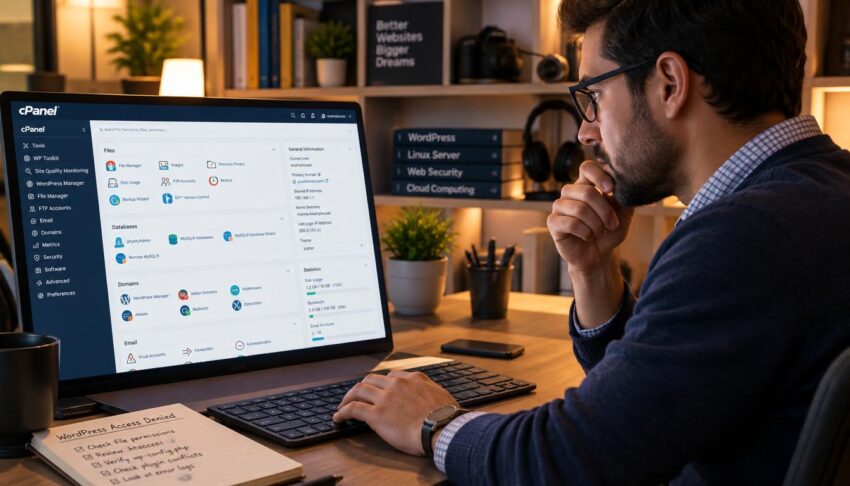
How to Fix WordPress 403 Error on CPanel,You refresh your WordPress site, but the page still blocks access. A sudden denial can keep visitors away and lock you out of the WordPress dashboard.
Common causes include file permissions, .htaccess rules, plugins, and server security settings. When the dashboard is unavailable, cPanel File Manager lets you inspect site files through your hosting account.
Make a full backup before changing files or settings. Then work through careful checks, from simple browser tests to cPanel and hosting support.

Edit
how to fix wordpress 403 forbidden error on cpanel
Key Takeaways
- Check whether the problem affects one device, one page, or every visitor.
- Back up the site before editing files or changing settings.
- Use cPanel File Manager if you cannot reach the WordPress dashboard.
- Change one setting at a time, then test the affected page.
- Ask your host to review server rules when safe cPanel checks fail.
What Does a WordPress 403 Forbidden Response Mean?
A 403 response means the server received your request but will not grant access to the requested resource. The denial alone does not show that you did anything wrong, and a server may block access by design.
A 403 means the server understood the request, then refused access to that resource.
A 403 forbidden error may appear as “403 Forbidden,” “HTTP Error 403-Forbidden,” or “Access Denied.” You might also see “403 Forbidden, access to this resource on the server is denied.”
Some servers block visitors from sensitive directories, even when the site itself works. File permissions are numeric rules that determine who can read, write, or execute files and directories on a server.
| What you see | Possible scope | First clue |
| One visitor affected | Device, network, or IP address | Other visitors can open the site |
| All visitors affected | Site files or server settings | Several networks show the same 403 error |
| Only one page or file affected | Specific URL or access rule | Other pages still load |
The message does not identify the exact cause, so treat it as a clue rather than a diagnosis. A useful 403 Forbidden error solution starts by checking whether the denial is local, limited to one URL, or affecting the whole site.
How to Fix WordPress 403 Forbidden Error on cPanel
First establish whether the site is blocked for everyone or only on your device. Simple checks can spot a local problem, while a full backup must come before file or settings changes.
A 403 Forbidden error solution begins with the client, meaning the browser or device making the request. A 403 Forbidden in Chrome may come from stored browser data, but a server-side denial needs a different fix.
Check the scope, back up, and try simple access fixes
Try these checks in order, and note whether the result changes after each one:
- Confirm the URL spelling and make sure the address points to the page you expect.
- Refresh the page once, then wait briefly and try again.
- Test from another network, such as cellular data instead of your usual Wi-Fi.
- Clear browser cache and cookies, then reopen the page.
A 403 may be temporary, but no set wait will clear it without fixing its cause. If the error began after a recent change, restoring a recent known-good backup may be an option.
Fix Chrome and Android browser-side problems
To learn how to fix a 403 Forbidden error on Google Chrome, clear cached images and files and cookies. Restart Chrome before testing the same URL again.
Chrome for Android uses its browser settings to clear browsing data. For how to fix a 403 Forbidden error on Google Chrome for Android, open those settings, remove cached data and cookies, then retry.
To learn how to fix WordPress 403 forbidden error on cPanel for Android, use your phone to test access first. If file changes are needed, use cPanel File Manager in a browser or on a computer when that feels easier.
Once browser checks fail, make a backup before controlled server-side changes. This moves troubleshooting from non-invasive tests to cPanel without risking the only copy of your site.
How Should WordPress File Permissions Be Set in cPanel?
Incorrect file permissions are a common reason a server refuses access. For most WordPress sites, directories use 755 and regular files use 644, but host rules may differ.
The three permission digits set access for the owner, group, and others, in that order. Do not make every file broadly writable just to remove a 403 error.
Check directory permissions in File Manager
Log in to cPanel and open cPanel File Manager. Find the WordPress root directory, often public_html, then look for folders such as wp-admin and wp-content.
Right-click a folder or file and choose Change Permissions. Read the displayed value before editing, since a host may set special needs for some items.
| Item | Typical value | Reason |
| Directories such as wp-admin and wp-content | 755 | Server can navigate the directory |
| Regular files such as index.php | 644 | Server can read the file |
| Other or host-specific files | Check with host | Do not assume every file has the same requirement |
Apply safe file permissions without overcorrecting
Enter 755 for a standard directory or 644 for a standard file, then save. Check the value again after saving, and avoid applying one value to mixed files and folders.
Setting every item to 775 or making files broadly writable is not a safe default. A recursive change can alter hundreds of files, so follow host instructions before using it.
Permission problems can affect one folder while leaving the rest of the site available. Retest the affected page after each adjustment, then inspect the rewrite rules if the denial remains.
How Can You Safely Replace the .htaccess File?
A recently added rewrite or access rule can deny a valid request by mistake. Test the file safely, because an .htaccess file may contain custom redirects or security rules.
The .htaccess file controls Apache server directives, including WordPress URL rewrite rules. Save the current file before testing a replacement, so you can restore its earlier settings.
Back up and rename the current file
The file may be hidden in the WordPress root directory, often public_html. Use cPanel File Manager or an FTP client to locate it and keep a separate copy.
- Show hidden files in cPanel File Manager or your FTP client.
- Find the .htaccess file in the WordPress root directory, often public_html.
- Download a copy or rename the file to .htaccess_old.
- Test the site and the page that showed the 403.
- If access returns, save Settings > Permalinks in the WordPress dashboard to regenerate the file.
Regenerate WordPress rewrite rules and test
Saving Permalinks can write a fresh default file when WordPress can reach its dashboard. If you are using FTP, upload or rename files carefully, and keep the saved copy outside the public site folder.
Custom redirects or security rules may need review and careful reapplication, one at a time. Do not copy old rules back as a group, since one restrictive line could restore the denial.
If the 403 error persists, restore the original .htaccess file rather than leaving the site without its prior configuration. When a careful file test does not help, check for a plugin that blocks access.
How Do You Find a Plugin Causing the 403?
A faulty or overly strict plugin can deny valid requests, especially when a security plugin blocks an IP address or page. Test plugins one at a time, and start with a plugin updated just before the problem began.
If you can reach the WordPress dashboard, deactivate a plugin and retest the page. Change one plugin at a time so you can connect the result to a clear action.
Isolate plugins from the WordPress dashboard
Start with a recently updated plugin or a security plugin that controls access. Retest the blocked page after each change, then restore plugins that did not affect the issue.
Keep a note of the plugin name and the result of each test. This makes it easier to spot a repeatable conflict instead of guessing from a long list of settings.
Disable plugins through cPanel when locked out
If you cannot open the dashboard, use cPanel File Manager to locate wp-content. Rename the plugins folder to plugins_disabled, then test the site.
That rename temporarily deactivates plugins. Restore the folder name to plugins, then reactivate each plugin individually and retest the affected page after every change.
The last plugin activated before the 403 returns is a likely cause, not proof of a permanent defect. Contact its developer or replace it if the issue recurs after activation.
If the same problem remains with plugins disabled, test the active theme next. A theme update or custom code can also change how the site handles a request.
Could Your WordPress Theme Be Blocking Access?
A 403 that starts after a theme update or customization may point to a theme conflict. Use a temporary test, since a theme can clash with the installed WordPress or PHP version.
From Appearance > Themes, activate an installed default theme such as Twenty Twenty-Four. Retest the affected pages and note whether the access problem changes.

Twenty Twenty-Four theme selected for a WordPress access test
A theme switch is a diagnostic test, not a final design fix. It can change your website’s layout, menus, or colors while the default theme is active.
If the dashboard is unavailable, use cPanel File Manager to rename the active theme folder. WordPress may fall back to an installed default theme, but this works only when one is present.
If the default theme restores access, check the theme’s fit with your WordPress and PHP versions. Contact the theme developer if the conflict returns after you restore the original theme.
If the theme is not responsible, review cPanel security controls next. Those controls can block an owner even when visitors still reach the site.
Could cPanel Security Rules or IP Blocking Cause the Error?
Your site may work for visitors but return 403 for you when your IP address is blocked. Compare networks first, then review cPanel settings or ask your host about server rules.
Cellular data can help show whether the usual Wi-Fi address is part of the problem. Do not turn off a security feature until you know which rule caused the denial.
Check whether your IP address is blocked
cPanel’s IP Blocker can show currently blocked IP addresses. A matching address is a useful clue, but remove only a confirmed unwanted block.
| Possible block | How to test | Safe next step |
| Your IP address | Try cellular data, then inspect cPanel IP Blocker | Remove only a confirmed unwanted block |
| ModSecurity or firewall rule | Ask the host to review the triggered rule | Do not disable protections without approval |
| Hotlink protection | Check the allowed-domain list for your site’s domains | Correct the list and retest affected images |
Review ModSecurity and hotlink protection carefully
ModSecurity and firewall rules can block a request that looks unsafe to the server. Ask hosting support to review the rule that triggered instead of disabling protections without approval.
Incorrect hotlink protection can block your site’s own image requests. Check that your site’s domains appear in the allowed list, then retest the affected images.
A security plugin may also block an IP address, but check its rules only after you restore access. If the error affects everyone and persists, inspect the root directory and ask about ownership checks.
Can a Missing Index File or Ownership Error Trigger 403?
A request to a directory without a recognized index file can return 403 when the server blocks directory listing. Check the root carefully, but never expose directory contents as a workaround.
A WordPress root directory normally contains an index.php file. If it disappeared after a failed update or suspicious changes, restore a known-good file or investigate the site.
Do not enable directory listing to make a folder open, because visitors could see file and folder names. A directory page should load through its expected index file instead.
Incorrect ownership can keep the web server from reading files, even when the visible access values seem right. Changing ownership is an advanced server operation and may need root access or SSH.
Shared-hosting customers should ask their provider to check ownership rather than run unfamiliar commands. If files look missing, altered, or unexpectedly restricted, run a malware check before making more changes.
What Should You Do if Malware Is Suspected?
A repaired 403 that returns alongside unfamiliar file changes can signal a compromise. Pause before cleanup, preserve a backup, and use a trusted scanner to learn what changed.
Run your hosting provider’s malware scanner if one is available. If you can reach the WordPress dashboard, use a reputable WordPress security scanner as another check.

Website owner reviews suspicious WordPress file changes before cleanup
Keep a backup before deleting or changing suspicious files. A scanner finding needs careful review, since deleting an unfamiliar file can remove valid site data.
Review unfamiliar .htaccess rules and compare them with a known-good copy. If malware is confirmed, change your WordPress, cPanel, FTP, and database credentials.
Do not assume every warning means a file is harmful. If the cause remains unclear or malware is confirmed, ask your host to review server logs and guide the cleanup.
What Can Server Logs Tell You About a 403?
Server logs are the next useful evidence when cPanel checks do not reveal the cause. They can show which request was denied and may point to a permission problem or security rule.
Share the approximate time, affected URL, and whether all visitors see the error with hosting support. Those details help staff find the matching event in the server logs.
.htaccess rules apply to Apache, not Nginx. An Nginx 403 needs the host to inspect its server configuration and logs.
A DNS mismatch can send a domain to the wrong destination, but DNS does not explain every 403. If the destination looks wrong, ask your host or registrar to confirm the domain points to the intended server.
When logs show a server-side block, support may need to change settings beyond your cPanel access. Contact the host when the issue persists, and keep records of changes to help prevent a repeat.
When Should You Contact Your Host, and How Can You Prevent a Repeat?
Contact your hosting provider when the error persists after safe checks, affects all visitors, or needs root access or server-rule changes. Stop before advanced edits if you do not control those settings.
Give support the affected URL, approximate time, scope of the problem, recent changes, and relevant error-log details. Specific details help the host match your report to a server event.
Hand off the issue when a fix needs server access you do not have.
Contact hosting support with specific diagnostic details
Tell support whether one page or the full site fails, and whether another network changes the result. Mention recent updates, restores, or file changes that happened before the first denial.
Keep the affected URL exact, including its path. A report such as “the site is broken” gives support less to check than a page address and an approximate time.
Reduce the chance of another 403
Use these habits to make future changes easier to track and undo:
- Keep WordPress core, themes, and plugins updated.
- Retain regular backups that you can restore.
- Review file permissions after migrations or restores.
- Document custom .htaccess and security rules, then test changes one at a time.
A change log can show which update came just before an access problem. A restorable backup and a clear record of recent changes make future diagnosis safer.
Conclusion
Make one controlled change at a time, and test the same page after each change. Keep a backup first whenever you edit server files or settings.
If the 403 remains, send your host the affected URL, the time it occurred, and whether other visitors can access the site. That information gives support a clear starting point.
Do not make advanced server changes without the right access or guidance. If visitors remain blocked, contact your hosting provider with those details as your immediate next step.
FAQ
How to fix 403 error in WordPress?
Start by checking the URL and testing from another network, then inspect site settings after making a backup. Standard WordPress directories often use 755, while regular files often use 644. If those values look right, check the .htaccess file and test for plugin conflicts. Change one item at a time so you can tell which step affects access.
How to get 403 Forbidden error to go away?
A 403 Forbidden error goes away when you correct the cause. Clearing browser data may help if the problem comes from local cache or cookies, but it will not fix a server rule. Check whether one device, one page, or all visitors are affected. Then address the matching browser, WordPress, or hosting setting.
How to access WordPress via cPanel?
Log in to your hosting account’s cPanel, open File Manager, and locate the WordPress installation, commonly under public_html. You can inspect files there even when the WordPress dashboard will not load. Make a backup before editing anything. If you cannot find the installation folder, ask your host where the site files are stored.
What is the common cause of a 403 Forbidden HTTP error?
Incorrect file or directory permissions are a common cause of a 403 Forbidden HTTP error. A damaged .htaccess file or a restrictive plugin can also deny a valid request. The message does not name the cause by itself. Check the scope first, then inspect the setting most likely tied to the affected page or visitor.
Is 403 Forbidden my fault?
No, a 403 Forbidden response does not necessarily mean you caused the problem. The server, a security rule, an IP block, or local browser data can deny access. A change you made may be related, but the error alone cannot prove that. Compare access from another device or network before changing site files.
Is 403 Forbidden permanent?
No, a 403 Forbidden response is not permanent by definition. It can continue until someone corrects the relevant permission, rule, plugin, or server setting. A browser-side cause may clear after you refresh stored data, while a host-level rule needs a server-side fix. If access stays blocked, contact the host with the URL and timing.
How long does it take for a 403 error to go away?
There is no guaranteed time for a 403 error to go away. A cache-related issue may clear after you refresh browser data, but a server rule can keep blocking access until someone changes it. Test from another network to help separate a local problem from a site-wide one. Ask your host to review persistent denials.
How do I fix error code 403?
First identify whether one device, one URL, or all visitors are affected. If only one device fails, clear its browser data and try another network. If one page fails, check that page’s files and access rules. When the whole site returns 403, back up your files and ask your host to review server settings if basic checks fail.